
Introduction
A homelab is like any other startup. You start off with a NAS and all the variables are easily controllable. There is 1 backup, 1 drive where all of the data lives and 2 or 3 applications. At this point in time you don’t see the value in writing down anything since you’re still experimenting, breaking and re-installing stuff. It’s a homelab after all. But at some point other people start depending on the infrastructure you built, you’ve replaced google photos with a self hosted solution, your lights depend on a service running in your basement and your girlfriend is unhappy because you just broke the wifi trying to setup a single sign on solution. It just feels out of control and the more you postpone it, the harder it will be to stear the boat in the right direction.
The solution for me was to switch to an excel sheet that keeps track of what runs where which might be enough for a homelab but once your team reaches three or four people you better put controls and processes in place or you’ll wake up with that eye-gauging invoice from AWS and you won’t even know on which cluster your customers are on. Start ups face the exact same problem. You want to grow fast and make everyone happy so you put in the extra hours and take on these new customers without setting the proper foundations or the rules of the game right from the start.
Netbox has been a revelation to me since the beginning of the year because it allows you to hook your favorite infrastructure as code tool to it and produce all sorts of useful dashboards to answer common questions like: Is this customer in our cloud? What reverse proxies are impacted by this outage or vulnerability? How many Windows licenses do we need? If automated correctly you’ll have a single source of truth that you can refer to.
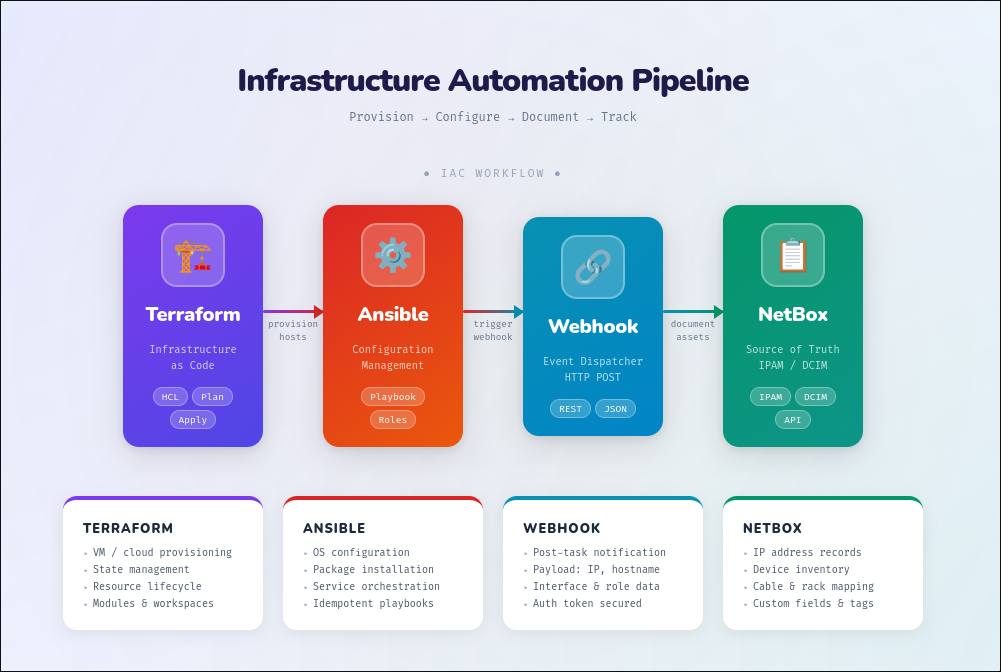
This is the workflow I’m trying to set in place, step by step, bit by bit. It requires some dedications and processes at the beginning since you don’t have all of the controls in place but at some point it should just flow by itself and need no human intervention at all. The infrastructure is defined with terraform, ansible applies configurations and triggers an action in netbox to create, update or delete a resource on our documentation.
Installing netbox
All of my deployments are now ansible playbooks so I’ll just share the one I use to install netbox:
1
2
3
4
5
6
7
8
9
10
11
12
13
14
15
16
17
18
19
20
21
22
23
24
25
26
27
28
29
30
31
32
33
34
35
36
37
38
39
40
41
42
43
44
45
46
47
48
49
50
51
52
53
54
55
56
57
58
59
60
61
62
63
64
65
66
67
68
69
70
71
72
73
74
75
76
77
78
79
80
81
82
83
84
85
86
87
88
89
90
91
92
93
94
95
96
97
98
99
100
101
102
103
104
105
106
107
108
109
110
111
112
113
114
115
116
117
118
119
120
121
122
123
124
125
126
127
128
129
130
131
---
- name: provision netbox
  hosts: localhost
  gather_facts: false
  vars_files:
    - group_vars/all/netbox-vault.yaml
  vars:
    kubeconfig_path: ~/.kube/config
    netbox_repo: "git@gitlab.thekor.eu:kube/netbox.git"
    netbox_dir: "~/netbox"
  tasks:

    - name: Check if repo already exists
      ansible.builtin.stat:
        path: "{{ netbox_dir }}"
      register: repo_dir

    - name: Clone netbox git repo
      ansible.builtin.git:
        repo: "{{ netbox_repo }}"
        dest: "{{ netbox_dir }}"
        version: main
        force: yes
        accept_hostkey: yes
      when: not repo_dir.stat.exists

    - name: Create namespace netbox
      kubernetes.core.k8s:
        state: present
        kind: Namespace
        name: netbox

    - name: Annotate wildcard-cloud2-tls secret declaratively
      kubernetes.core.k8s:
        state: present
        kind: Secret
        namespace: cert-manager
        name: wildcard-cloud2-tls
        definition:
          metadata:
            annotations:
              replicator.v1.mittwald.de/replicate-to: "netbox"

    - name: Get API_TOKEN_PEPPERS from extraEnvs list
      ansible.builtin.set_fact:
        api_token_pepper: "{{ extraEnvs | selectattr('name','equalto','API_TOKEN_PEPPERS') | map(attribute='value') | first }}"

    - name: Print the pepper
      ansible.builtin.debug:
        msg: "API_TOKEN_PEPPERS is {{ api_token_pepper }}"

    - name: Ensure netbox-peppers ConfigMap exists
      kubernetes.core.k8s:
        state: present
        definition:
          apiVersion: v1
          kind: ConfigMap
          metadata:
            name: netbox-peppers
            namespace: netbox
          data:
            peppers.py: |
              API_TOKEN_PEPPERS = {
                0: "{{ api_token_pepper }}"
              }

    - name: Install helm chart
      community.kubernetes.helm:
        name: netbox-thekor
        chart_ref: "{{ netbox_dir }}/charts/netbox"
        release_namespace: netbox
        dependency_update: yes
        values: "{{ lookup('file', 'group_vars/all/netbox-vault.yml') | from_yaml }}"
        state: present
        force: yes
        create_namespace: yes

    - name: Create PostgreSQL user password
      community.postgresql.postgresql_query:
        db: mydb
        login_user: postgres
        login_password: "{{ POSTGRES_PASSWORD }}"
        login_host: postgres.postgres.svc.cluster.local
        login_port: 5432
        query: "CREATE USER '{{ externalDatabase['user'] }}' WITH ENCRYPTED PASSWORD '{{ externalDatabase['password'] }}';"

    - name: Create netbox database
      kubernetes.core.k8s_exec:
        namespace: postgres
        pod: postgres-0
        command: |
          psql -U postgres -c "CREATE DATABASE netbox OWNER '{{ externalDatabase['user'] }}';"
      environment:
        PGPASSWORD: "{{ POSTGRES_PASSWORD }}"

    - name: Grant privileges
      kubernetes.core.k8s_exec:
        namespace: postgres
        pod: postgres-0
        command: |
          psql -U postgres -c "GRANT ALL PRIVILEGES ON DATABASE netbox TO '{{ externalDatabase['user'] }}';"
      environment:
        PGPASSWORD: "{{ POSTGRES_PASSWORD }}"

    - name: Grant privileges on tables to netbox's user
      kubernetes.core.k8s_exec:
        namespace: postgres
        pod: postgres-0
        command: |
          psql -U postgres -d netbox -c "GRANT ALL PRIVILEGES ON ALL TABLES IN SCHEMA public TO '{{ externalDatabase['user'] }}';"
          psql -U postgres -d netbox -c "GRANT ALL PRIVILEGES ON ALL SEQUENCES IN SCHEMA public TO '{{ externalDatabase['user'] }}';"
          psql -U postgres -d netbox -c "ALTER DEFAULT PRIVILEGES IN SCHEMA public GRANT ALL ON TABLES TO '{{ externalDatabase['user'] }}';"
          psql -U postgres -d netbox -c "ALTER DEFAULT PRIVILEGES IN SCHEMA public GRANT ALL ON SEQUENCES TO '{{ externalDatabase['user'] }}';"

      environment:
        PGPASSWORD: "{{ POSTGRES_PASSWORD }}"

    - name: Grant privileges on tables to the backup user
      kubernetes.core.k8s_exec:
        namespace: postgres
        pod: postgres-0
        command: |
          psql -U postgres -c "GRANT ALL PRIVILEGES ON DATABASE netbox TO fedora_backup_user;"
          psql -U postgres -d netbox -c "GRANT ALL PRIVILEGES ON ALL TABLES IN SCHEMA public TO fedora_backup_user;"
          psql -U postgres -d netbox -c "GRANT ALL PRIVILEGES ON ALL SEQUENCES IN SCHEMA public TO fedora_backup_user;"
          psql -U postgres -d netbox -c "ALTER DEFAULT PRIVILEGES IN SCHEMA public GRANT ALL ON TABLES TO fedora_backup_user;"
          psql -U postgres -d netbox -c "ALTER DEFAULT PRIVILEGES IN SCHEMA public GRANT ALL ON SEQUENCES TO fedora_backup_user;"
          psql -U postgres -d netbox -c "ALTER DATABASE netbox OWNER TO '{{ externalDatabase['user'] }}';"

      environment:
        PGPASSWORD: "{{ POSTGRES_PASSWORD }}"
The playbook above downloads a custom helm chart, creates the namespace, replicates some secrets and creates the necessary users in the database for the service to run. I had to customize the helm chart because I didn’t find any other way for the background worker to function properly
I had written a small bash script which was adapted to loop over certain schemas in the database and dump the sql into an external S3 bucket
1
2
3
4
5
6
7
8
9
10
11
12
13
14
15
16
17
18
19
20
21
22
23
24
25
26
27
28
29
30
31
32
33
34
35
36
37
38
39
40
41
42
43
44
45
46
47
48
49
50
51
52
53
54
55
56
57
58
59
60
61
62
63
64
65
66
67
68
69
70
71
72
73
74
75
76
77
78
79
80
81
82

---
- name: Postgres backup CronJob
  hosts: localhost
  gather_facts: false
  vars_files:
    - group_vars/all/vault.yml
  vars:
    kubeconfig_path: ~/.kube/config

  tasks:
    - name: Create AWS credentials secret
      kubernetes.core.k8s:
        state: present
        definition:
          apiVersion: v1
          kind: Secret
          metadata:
            name: aws-credentials
            namespace: postgres
          type: Opaque
          stringData:
            AWS_ACCESS_KEY_ID: "{{ AWS_ACCESS_KEY_ID }}"
            AWS_SECRET_ACCESS_KEY: "{{ AWS_SECRET_ACCESS_KEY }}"

    - name: Deploy pgdump CronJob
      kubernetes.core.k8s:
        state: present
        definition:
          apiVersion: batch/v1
          kind: CronJob
          metadata:
            name: pgdump-backup
            namespace: postgres
          spec:
            schedule: "0 0 31 2 *"  # Never runs automatically
            successfulJobsHistoryLimit: 3
            failedJobsHistoryLimit: 3
            jobTemplate:
              spec:
                backoffLimit: 0
                template:
                  spec:
                    restartPolicy: Never
                    imagePullSecrets:
                      - name: docker-registry-secret
                    nodeSelector:
                      kubernetes.io/hostname: kube-node1
                    containers:
                      - name: pgdump
                        image: registry.thekor.eu/docker/k8s-fedora-backup/postgres-backup:17-alpine-awscli
                        command:
                          - /bin/bash
                          - -c
                          - /root/backupoutput/sql_postgres.sh
                        env:
                          - name: AWS_ACCESS_KEY_ID
                            valueFrom:
                              secretKeyRef:
                                name: aws-credentials
                                key: AWS_ACCESS_KEY_ID
                          - name: AWS_SECRET_ACCESS_KEY
                            valueFrom:
                              secretKeyRef:
                                name: aws-credentials
                                key: AWS_SECRET_ACCESS_KEY
                          - name: PGHOST
                            value: "{{ POSTGRES_HOST }}"
                          - name: PGUSER
                            value: "{{ POSTGRES_BACKUP_USER }}"
                          - name: PGPASSWORD
                            value: "{{ POSTGRES_BACKUP_PASSWORD }}"
                          - name: PG_TARGETS
                            value: "grafana linkwarden netbox"
                        volumeMounts:
                          - name: backupoutput
                            mountPath: /root/backupoutput
                    volumes:
                      - name: backupoutput
                        hostPath:
                          path: /mnt/backupoutput
                          type: DirectoryOrCreate
Now that’s out of the way let’s create the region, location, prefixes and tenants by following this great tutorial: https://github.com/netbox-community/netbox-zero-to-hero. They even come with a video series to get you up to speed on how to set everything up yourself. Once the setup is done you should have your infrastructure defined as static variables in ansible.
Automating VM creation in netbox
All of the playbooks you ran in the netbox-zero-to-hero tutorial were one-off playbooks that don’t change very often in my world so I’m not that interested in automating them any time soon. They are of course “nice to have” but I think it’s always important to keep in mind the goal that we are trying to achieve. We want a goal that’s not too out of reach for the scope of this article otherwise I’ll have to hibernate for the next 3 months in my basement and end up with a burn out. We also wouldn’t want something deemed “too easy” which wouldn’t provide any satisfaction once completed. This leads us to the humble objective of creating VMs. The playbook should run on a schedule, be idempotent and create a VM if it doesn’t exist. How should we go about creating a windows or linux VM in netbox over the API?
1. Windows VMs
On the Client
Windows requires some setup to get the windows remote service and SSH to work
Create the service account with the right permissions for ansible to connect to:
1
2
3
4
5
6
7
8
9
10
11
12
# Define username and password
$username = "netbox"
$password = "password"

# Convert to secure string
$securePassword = ConvertTo-SecureString $password -AsPlainText -Force

# Create the user
New-LocalUser -Name $username -Password $securePassword -FullName "Automation" -Description "Automation account ansible"

net localgroup "Remote administration users" netbox /add
net localgroup Administrators netbox /add
Install the SSH server and enable winrm:
1
2
3
4
5
6
7
8
Add-WindowsCapability -Online -Name OpenSSH.Server~~~~0.0.1.0

# Start and enable SSH server
Start-Service sshd
Set-Service -Name sshd -StartupType 'Automatic'

winrm quickconfig
Enable-PSRemoting -Force
Add the service account’s public key to the administrator’s authorized_keys
1
2
3
4
5
6
7
8
9
10
11
12
13
14
15
16
# Replace this with your actual public key from the command above
$publicKey = "ssh-ed25519 AAAAAAAAAAAAAAAAAAAAAAAAAA netbox@hello.com"

# Write with UTF-8 encoding (no BOM)
[System.IO.File]::WriteAllText("C:\ProgramData\ssh\administrators_authorized_keys", $publicKey + "`n", [System.Text.UTF8Encoding]::new($false))

# Verify encoding
Get-Content C:\ProgramData\ssh\administrators_authorized_keys -Encoding UTF8

# Set permissions
icacls C:\ProgramData\ssh\administrators_authorized_keys /inheritance:r
# Grant ONLY SYSTEM and Administrators group
icacls C:\ProgramData\ssh\administrators_authorized_keys /grant "NT AUTHORITY\SYSTEM:F"
icacls C:\ProgramData\ssh\administrators_authorized_keys /grant "BUILTIN\Administrators:F"

Restart-Service sshd
And install python3:
1
2
3
4
5
6
7
8
9
10
11
12
13
14
15
16
17
# Define version (adjust if needed)
$version = "3.12.2"
$installer = "python-$version-amd64.exe"
$url = "https://www.python.org/ftp/python/$version/$installer"
$path = "$env:TEMP\$installer"

# Download installer
Invoke-WebRequest -Uri $url -OutFile $path

# Silent install
Start-Process -FilePath $path -ArgumentList "/quiet InstallAllUsers=1 PrependPath=1 Include_test=0" -Wait

# Cleanup
Remove-Item $path

# Verify
python --version
On the Server
Ansible should have SSH to the Client that we just configured on the section above. Either directly or through a chain of jumphosts, both would work.
The playbook below loops over all members of the “windows_group” group, opens a tunnel to them queries the ansible_facts and saves that information in ./windows_facts/bla.json
1
2
3
4
5
6
7
8
9
10
11
12
13
14
15
16
17
18
19
---
# run_windows_tasks_via_tunnel.yml
- name: Execute Windows tasks via SSH tunnels
  hosts: localhost
  gather_facts: no
  vars_files:
    - group_vars/all/vault.yml
  vars:
    local_port: 55985
  tasks:
    - name: Get hosts from inventory
      ansible.builtin.set_fact:
        windows_hosts: "{{ groups['windows_group'] }}"

    - name: "Process each Windows host"
      include_tasks: tasks/gather_windows_facts.yml
      loop: "{{ groups['windows_group'] }}"  # or your host list variable
      loop_control:
        loop_var: target_host
1
2
3
4
5
6
7
8
9
10
11
12
13
14
15
16
17
18
19
20
21
22
23
24
25
26
27
28
29
30
31
32
33
34
35
36
37
38
39
40
41
42
43
44
45
46
47
48
49
50
51
52
53
54
55
56
57
58
59
60
61
62
63
64
65
66
67
68
69
70
71
72
73
74
75
76
77
78
79
80
81
82
83
84
85
86
87
88
89
90
91
92
93
94
95
96
97
98
99
100
101
102
103
104
105
106
107
108
109
110
111
112
113
114
115
116
117
118
119
120
121
122
123
124
125
126
127
128
129
130
131
132
133
134
---
# tasks/gather_windows_facts.yml
- name: "Display current host"
  ansible.builtin.debug:
    msg: "Processing {{ target_host }}"

- name: "Start SSH tunnel for {{ target_host }}"
  ansible.builtin.shell: |
    ssh -fNT -L 127.0.0.1:{{ local_port }}:127.0.0.1:5985 {{ target_host }}
  register: tunnel_result
  changed_when: false
  failed_when: false

- name: "Wait for tunnel to establish"
  ansible.builtin.pause:
    seconds: 2

- name: Debug password override lookup
  ansible.builtin.debug:
    msg:
      - "Target host: {{ target_host }}"
      - "Override exists: {{ target_host in windows_password_overrides | default({}) }}"
      - "Override value: {{ windows_password_overrides[target_host] | default('NOT SET') }}"

- name: "Test WinRM connection"
  ansible.windows.win_ping:
  delegate_to: 127.0.0.1
  vars:
    ansible_connection: winrm
    ansible_winrm_scheme: http
    ansible_port: "{{ local_port }}"
    ansible_winrm_transport: ntlm
    ansible_winrm_server_cert_validation: ignore
    ansible_user: >-
      {{
        windows_user_overrides[target_host]
        | default(NETBOX_USER)
      }}
    ansible_password: >-
      {{
        windows_password_overrides[target_host]
        | default(NETBOX_WINDOWS_PASSWORD)
      }}
  register: ping_result
  ignore_errors: no

- name: "Get current user on {{ target_host }}"
  ansible.windows.win_shell: whoami
  delegate_to: 127.0.0.1
  vars:
    ansible_connection: winrm
    ansible_winrm_scheme: http
    ansible_port: "{{ local_port }}"
    ansible_winrm_transport: ntlm
    ansible_winrm_server_cert_validation: ignore
    ansible_user: >-
      {{
        windows_user_overrides[target_host]
        | default(NETBOX_USER)
      }}
    ansible_password: >-
      {{
        windows_password_overrides[target_host]
        | default(NETBOX_WINDOWS_PASSWORD)
      }}
  register: whoami_result
  when: ping_result is succeeded

- name: "Display results for {{ target_host }}"
  ansible.builtin.debug:
    msg: "Connected as: {{ whoami_result.stdout | default('Failed') | trim }}"
  when: whoami_result is defined

- name: "Gather all facts from {{ target_host }}"
  ansible.builtin.setup:
  delegate_to: 127.0.0.1
  vars:
    ansible_connection: winrm
    ansible_winrm_scheme: http
    ansible_port: "{{ local_port }}"
    ansible_winrm_transport: ntlm
    ansible_winrm_server_cert_validation: ignore
    ansible_user: >-
      {{
        windows_user_overrides[target_host]
        | default(NETBOX_USER)
      }}
    ansible_password: >-
      {{
        windows_password_overrides[target_host]
        | default(NETBOX_WINDOWS_PASSWORD)
      }}
  register: windows_facts
  when: ping_result is succeeded
  run_once: false

- name: "Create facts directory"
  ansible.builtin.file:
    path: "./windows_facts"
    state: directory
    mode: '0755'
  when: windows_facts is succeeded

- name: "Save facts to JSON file"
  ansible.builtin.copy:
    content: "{{ windows_facts.ansible_facts | to_nice_json }}"
    dest: "./windows_facts/{{ target_host }}_facts.json"
  when: windows_facts is succeeded

- name: "Display results for {{ target_host }}"
  ansible.builtin.debug:
    msg:
      - "Host: {{ target_host }}"
      - "Status: {{ 'SUCCESS - Facts saved to ./windows_facts/' + target_host.split('.')[0] + '_facts.json' if windows_facts is succeeded else 'FAILED' }}"
      - "Hostname: {{ windows_facts.ansible_facts.ansible_hostname | default('N/A') }}"
      - "OS: {{ windows_facts.ansible_facts.ansible_os_name | default('N/A') }}"
      - "IPv4 Address: {{ windows_facts.ansible_facts.ansible_interfaces[0].ipv4.address | default('N/A') }}"

- name: "Close SSH tunnel for {{ target_host }}"
  ansible.builtin.shell: |
    if lsof -t -i:{{ local_port }} > /dev/null 2>&1; then
      kill $(lsof -t -i:{{ local_port }})
    fi
  register: kill_result
  changed_when: false
  failed_when: false

- name: "Wait for port to be released"
  ansible.builtin.wait_for:
    port: "{{ local_port }}"
    host: 127.0.0.1
    state: stopped
    timeout: 5
This next playbook builds on top of the last one. It reads the json files we created earlier and creates them if they don’t exist on netbox already
1
2
3
4
5
6
7
8
9
10
11
12
13
14
15
16
17
18
19
20
21
22
23
24
25
26
27
28
29
30
31
32
33
34
35
36
37
38
39
40
41
42
43
44
45
46
47
48
49
50
51
52
---
- name: Create VMs in NetBox
  hosts: localhost
  gather_facts: no
  vars:
    netbox_url: "{{ NETBOX_API }}"
    netbox_token: "{{ NETBOX_TOKEN }}"
    netbox_cluster_id: 1   # Change to your cluster ID
    netbox_site_id: 1     # Change to your site ID
    facts_directory: "./windows_facts"
  vars_files:
    - group_vars/all/vault.yml
  tasks:
    - name: Find all facts JSON files
      ansible.builtin.find:
        paths: "{{ facts_directory }}"
        patterns: "*_facts.json"
      register: facts_files

    - name: Check if VM exists cluster-wide
      ansible.builtin.uri:
        url: "{{ netbox_url }}/api/virtualization/virtual-machines/?name={{ item.path | basename | regex_replace('_facts.json$', '') }}"
        method: GET
        headers:
          Authorization: "Token {{ netbox_token }}"
          Content-Type: "application/json"
        return_content: yes
        status_code: 200
      register: vm_search
      loop: "{{ facts_files.files }}"
      loop_control:
        label: "{{ item.path | basename | regex_replace('_facts.json$', '') }}"

    - name: Create VM in NetBox only if not found
      ansible.builtin.uri:
        url: "{{ netbox_url }}/api/virtualization/virtual-machines/"
        method: POST
        headers:
          Authorization: "Token {{ netbox_token }}"
          Content-Type: "application/json"
        body_format: json
        body:
          name: "{{ item.item.path | basename | regex_replace('_facts.json$', '') }}"
          cluster: "{{ netbox_cluster_id }}"
          site: "{{ netbox_site_id }}"
          status: "active"
        status_code: 201
        return_content: yes
      loop: "{{ vm_search.results }}"
      loop_control:
        label: "{{ item.item.path | basename | regex_replace('_facts.json$', '') }}"
      when: item.json.count == 0
2. Linux VMs
On the Client
The setup is a lot simpler than what we did on windows. You’ll just need to make sure that a basic user exists on the target:
1
2
3
4
useradd -m -s /bin/bash netbox
mkdir /home/netbox/.ssh
echo "ssh-ed25519 AAAAAAAAAAAAAAAAAAAAAAAAAA netbox@hello.com" > /home/netbox/.ssh/authorized_keys
chown -R netbox:netbox /home/netbox/.ssh
On the Server
No need to setup a tunnel, the machines can be queried over SSH
1
2
3
4
5
6
7
8
9
10
11
12
13
14
15
16
17
18
19
20
21
22
23
24
25
26
27
28
29
30
31
32
33
34
35
36
37
38
39
40
41
42
43
44
45
46
47
48
49
50
51
52
53
54
55
56
57
58
59
60
61
62
63
64
65
66
67
68
69
70
71
72
73
74
75
76
77
78
---
- name: Execute linux tasks via SSH tunnels
  hosts: fedora42_proxmox, fedora43_proxmox
  gather_facts: yes
  # Limits parallel execution to one host at a time
  # serial: 1
  vars:
    ansible_python_interpreter: /usr/bin/python3
  vars_files:
    - group_vars/all/vault.yml
  tasks:
    - name: Display active host
      debug:
        msg: "Processing {{ inventory_hostname }}"

    - name: Build extended fedora facts object
      set_fact:
        fedora_facts:
          identity:
            hostname: "{{ ansible_hostname | default('N/A') }}"
            fqdn: "{{ ansible_fqdn | default('N/A') }}"
          os:
            name: "{{ ansible_distribution | default('N/A') }}"
            version: "{{ ansible_distribution_version | default('N/A') }}"
            codename: "{{ ansible_distribution_release | default('N/A') }}"
            family: "{{ ansible_os_family | default('N/A') }}"
          kernel:
            version: "{{ ansible_kernel | default('N/A') }}"
            arch: "{{ ansible_architecture | default('N/A') }}"
          cpu:
            model: "{{ ansible_processor[2] | default(ansible_processor[0] | default('N/A')) }}"
            cores: "{{ ansible_processor_cores | default('N/A') }}"
            vcpus: "{{ ansible_processor_vcpus | default('N/A') }}"
          memory:
            total_mb: "{{ ansible_memtotal_mb | default('N/A') }}"
          storage:
            root_size_gb: >-
              {{
                (ansible_mounts
                  | selectattr('mount','equalto','/')
                  | map(attribute='size_total')
                  | first | default(0) / 1024 / 1024 / 1024) | round(1)
              }}
          network:
            primary_ip: "{{ ansible_default_ipv4.address | default('N/A') }}"
            interface: "{{ ansible_default_ipv4.interface | default('N/A') }}"
          virtualization:
            role: "{{ ansible_virtualization_role | default('N/A') }}"
            type: "{{ ansible_virtualization_type | default('N/A') }}"
          boot:
            firmware: "{{ 'UEFI' if (ansible_efi_boot | default(false)) else 'BIOS' }}"
          uptime:
            seconds: "{{ ansible_uptime_seconds | default('N/A') }}"
        cacheable: yes

    - name: Create fedora_facts directory
      ansible.builtin.file:
        path: "./fedora_facts"
        state: directory
        mode: '0755'
      delegate_to: localhost
      run_once: yes

    - name: Save facts to JSON file
      ansible.builtin.copy:
        content: "{{ fedora_facts | to_nice_json }}"
        dest: "./fedora_facts/{{ inventory_hostname }}_facts.json"
      delegate_to: localhost

    - name: Display results
      debug:
        msg:
          - "Host: {{ inventory_hostname }}"
          - "Status: SUCCESS - Facts saved to ./fedora_facts/{{ inventory_hostname }}_facts.json"
          - "Hostname: {{ fedora_facts.identity.hostname }}"
          - "OS: {{ fedora_facts.os.name }} {{ fedora_facts.os.version }}"
          - "IP Address: {{ fedora_facts.network.primary_ip }}"
Just like for windows, we split the gathering of facts from the actual instanciation to keep things simple and have some separation of concerns.
1
2
3
4
5
6
7
8
9
10
11
12
13
14
15
16
17
18
19
20
21
22
23
24
25
26
27
28
29
30
31
32
33
34
35
36
37
38
39
40
41
42
43
44
45
46
47
48
49
50
51
52
53
54

---
- name: Create VMs in NetBox
  hosts: localhost
  gather_facts: no
  vars:
    netbox_url: "{{ NETBOX_API }}"
    netbox_token: "{{ NETBOX_TOKEN }}"
    netbox_cluster_id:   # Change to your cluster ID
    netbox_site_id: 2     # Change to your site ID
    facts_directory: "./fedora_facts"
  vars_files:
    - group_vars/all/vault.yml
  tasks:
    - name: Find all facts JSON files
      ansible.builtin.find:
        paths: "{{ facts_directory }}"
        patterns: "*_facts.json"
      register: facts_files

    - name: Check if VM exists cluster-wide
      ansible.builtin.uri:
        url: "{{ netbox_url }}/api/virtualization/virtual-machines/?name={{ item.path | basename | regex_replace('_facts.json$', '') }}"
        method: GET
        headers:
          Authorization: "Token {{ netbox_token }}"
          Content-Type: "application/json"
        return_content: yes
        status_code: 200
      register: vm_search
      loop: "{{ facts_files.files }}"
      loop_control:
        label: "{{ item.path | basename | regex_replace('_facts.json$', '') }}"

    - name: Create VM in NetBox only if not found
      ansible.builtin.uri:
        url: "{{ netbox_url }}/api/virtualization/virtual-machines/"
        method: POST
        headers:
          Authorization: "Token {{ netbox_token }}"
          Content-Type: "application/json"
        body_format: json
        body:
          name: "{{ item.item.path | basename | regex_replace('_facts.json$', '') }}"
          cluster: "{{ netbox_cluster_id }}"
          site: "{{ netbox_site_id }}"
          status: "active"
        status_code: 201
        return_content: yes
      loop: "{{ vm_search.results }}"
      loop_control:
        label: "{{ item.item.path | basename | regex_replace('_facts.json$', '') }}"
      when: item.json.count == 0
And there you go. An infrastructure in sync with your ansible inventory. This would only be a first step in a series of integrations between netbox, ansible and terraform.
Reporting
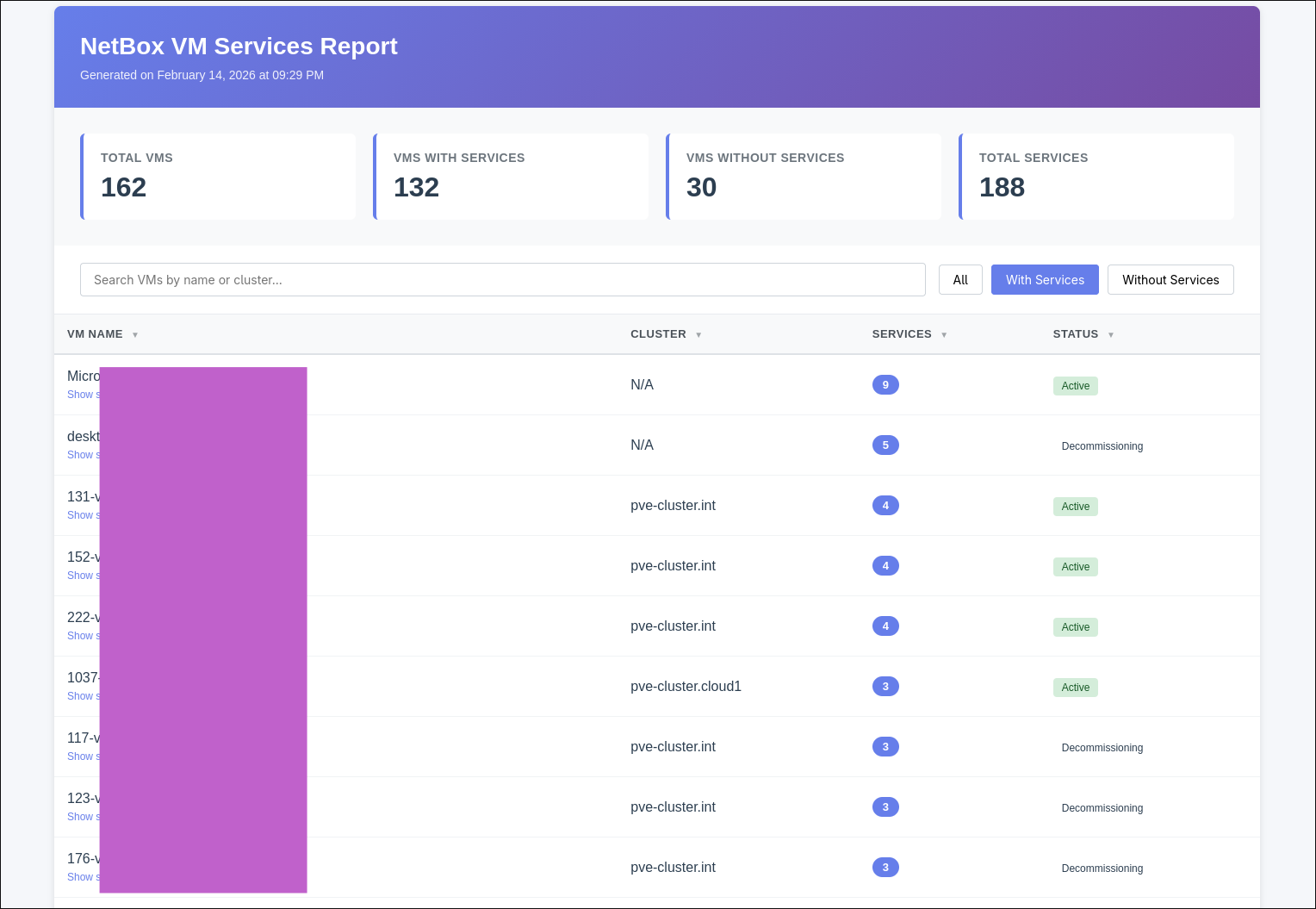
Once syncronized to your hypervisor you can create html reports from the netbox api like the one below for example to quickly highlight VMs that have no application services defined
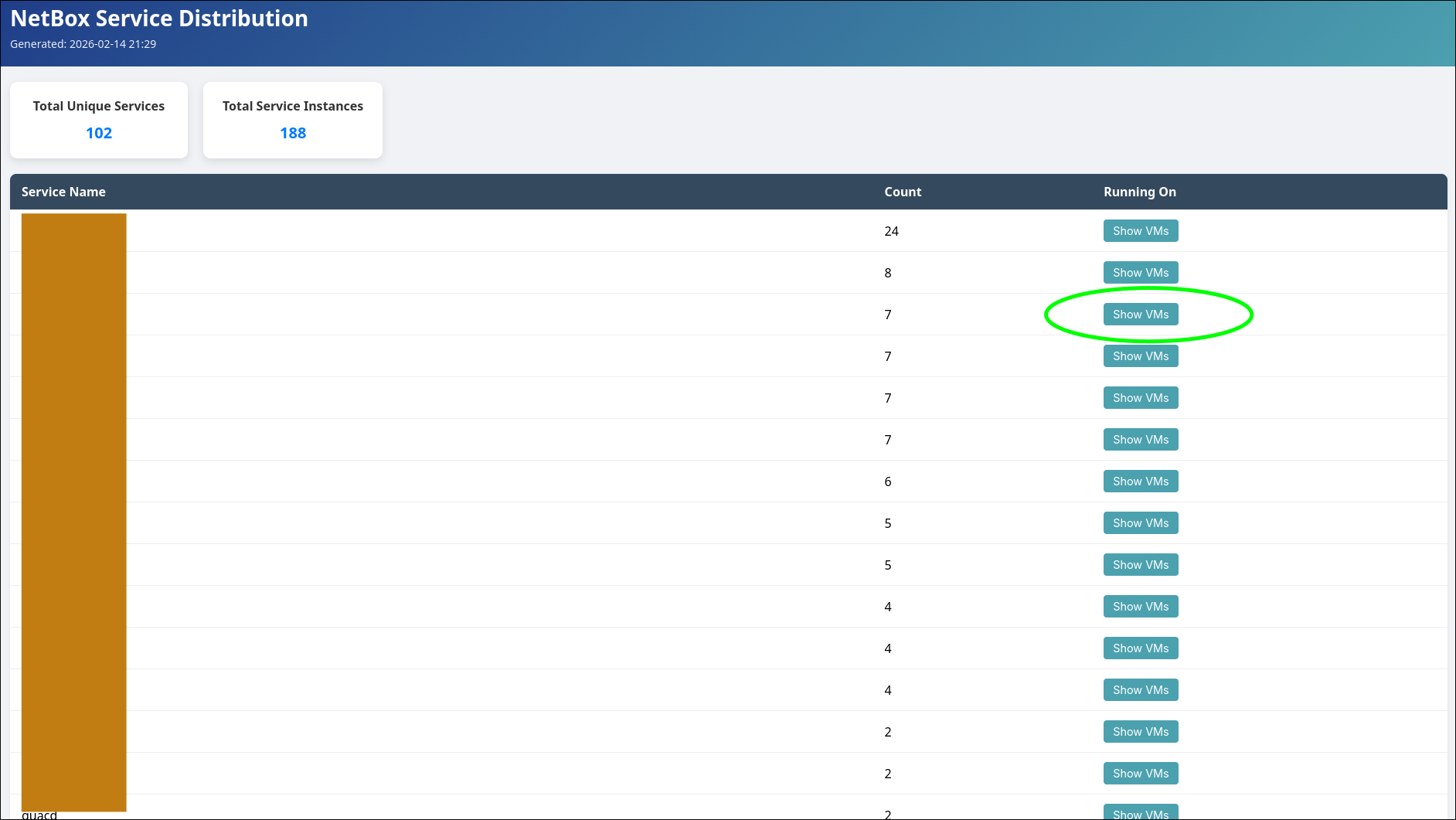
Another useful report I built for myself is a simple breakdown of platforms which would count the number of machines in each category. Or a report to that you could use to quickly list where certain application services are running. “Show VMs” expands and shows us where the application is running
Conclusion
Netbox is a powerful documentation tool that can be used as a configuration management database for servers and applications. When done right it could even be used to architect and plan the IT infrastructure.
Integrating systems together is not an easy endeavour and should not be taken lightly. Perhaps there are easier ways to gather facts so I’ll definitely keep an open eye for alternatives and write an article about it here in the future.
Thanks for tagging along
Cheers