
Introduction
Have you ever wondered how a program ends up running on a graphics card instead of a CPU? I never really had, until I started planning a pool of GPU machines on Kubernetes to run ComfyUI. Turns out there’s a surprisingly neat chain of events behind it, so here’s the plain-English version, with the real commands for the nerdy bits.
So what does “running on a GPU” even mean?
ComfyUI is a python app built on PyTorch which uses CUDA libraries under the hood. CUDA is NVIDIA’s toolkit for talking to its own cards, and NVIDIA graphics cards already know how to deal with it. So the program basically says “do this math with CUDA” and the card just gets it, with no translation needed.
The tricky part is everything around that. My program lives inside a container in a Kubernetes cluster, while the card sits in a physical machine underneath. Somehow the container has to be able to reach it. The tool that sets up all that plumbing for you is the NVIDIA GPU Operator, and we’ll see how it works in this post.
My setup
I’m using Rancher’s RKE2 on Rocky Linux 9 because of the compatibility matrix of the Nvidia GPU operator but you can do as you like. I’m letting the operator manage the driver for me instead of installing one on the machine myself because I hope it will manage the driver lifecycle on its own.
Two rules before setting anything up:
- Don’t install any NVIDIA driver on the host. The operator brings its own, and the two would fight.
- Make sure nouveau isn’t loaded. That’s the open-source driver Linux sometimes grabs for NVIDIA cards. The operator’s driver container normally deals with it, but if the module load fails, blacklist nouveau in the kernel boot parameters and reboot.
The overview of the steps
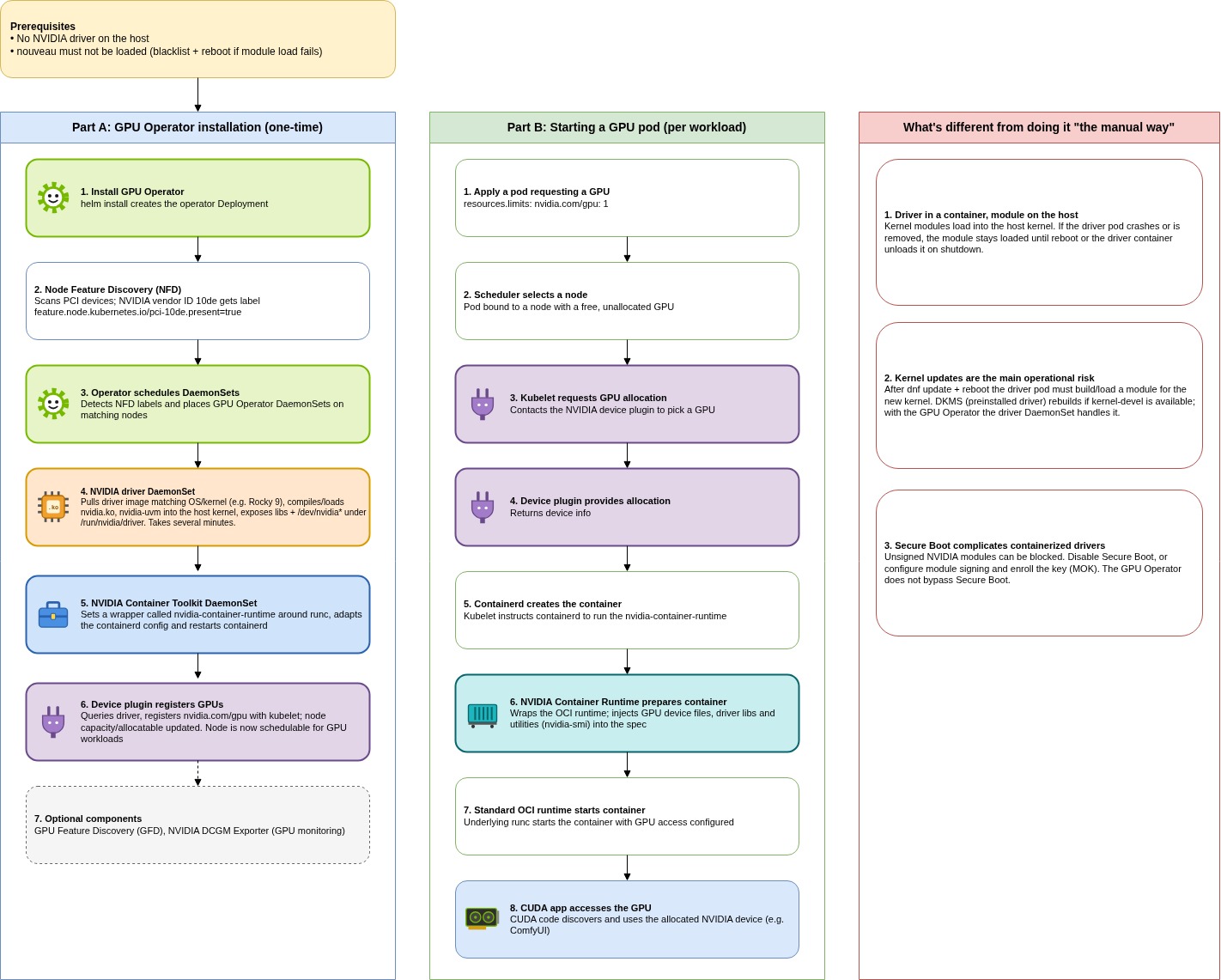
The TLDR version:
The GPU Operator takes what used to be a pile of manual steps (driver, container toolkit, runtime config, device plugin) and turns it into a chain of workers that set each other up. Label the node, load the driver, configure the runtime, announce the GPUs, and from then on a pod only has to say nvidia.com/gpu: 1. The catch is that the driver’s kernel module lives in the machine’s own kernel, so kernel updates and Secure Boot are where I’ll be keeping a close eye. Handle those two and the rest is mostly waiting for pods to turn green.
The install command
One helm command kicks everything off. Note that I’m not setting driver.enabled=false, because I want the operator to handle the driver. The toolkit.env lines tell the operator’s toolkit where RKE2 keeps its containerd config and socket, and to register the runtime as nvidia and make it the default:
1
2
3
4
5
6
7
8
9
10
helm install --wait gpu-operator nvidia/gpu-operator \
  -n gpu-operator --create-namespace \
  --set toolkit.env[0].name=CONTAINERD_CONFIG \
  --set toolkit.env[0].value=/var/lib/rancher/rke2/agent/etc/containerd/config.toml.tmpl \
  --set toolkit.env[1].name=CONTAINERD_SOCKET \
  --set toolkit.env[1].value=/run/k3s/containerd/containerd.sock \
  --set toolkit.env[2].name=CONTAINERD_RUNTIME_CLASS \
  --set toolkit.env[2].value=nvidia \
  --set toolkit.env[3].name=CONTAINERD_SET_AS_DEFAULT \
  --set-string toolkit.env[3].value=true
Part A: The one-time setup (a row of dominoes)
After that single command, a whole chain of things happens, each one waiting on the one before it. Here’s the order.
1. The operator moves in
helm install creates the operator itself plus a ClusterPolicy, which is basically the settings file the operator reads from.
2. It figures out which machines have GPUs
The operator installs a helper called Node Feature Discovery (NFD) that looks over each machine’s PCI devices, the stuff plugged into the motherboard. Anything with an NVIDIA card (vendor ID 10de) gets a sticky note, a label like this:
1
feature.node.kubernetes.io/pci-10de.present=true
3. It sends workers to those machines
The operator spots the labels and schedules its DaemonSets (little worker pods that run on every matching machine) onto the GPU nodes.
4. The driver gets set up
This is my favorite part. The driver DaemonSet:
- Grabs a driver container image that matches your OS and exact kernel version (in my case Rocky Linux 9 and whatever kernel it’s running).
- Compiles or loads the NVIDIA kernel modules (
nvidia.ko,nvidia-uvmand friends) into the machine’s kernel, from inside the container. - Puts the driver libraries and the
/dev/nvidia*device files somewhere the next step can find them, by default/run/nvidia/driver.
This can take several minutes the first time, so go make a coffee.
One gotcha: nvidia-smi (the handy “show me my GPU” command) might not work on the host yet. Run it from inside the driver pod instead:
1
kubectl -n gpu-operator exec -it ds/nvidia-driver-daemonset -- nvidia-smi
5. A validator double-checks the driver
A little validator pod confirms the driver loaded and actually works. Everything after this waits for it to pass.
6. The container toolkit arrives
The Container Toolkit DaemonSet installs nvidia-container-runtime and its friends on the machine, then wires the NVIDIA runtime into RKE2’s config.toml.tmpl. After that it restarts containerd, which on RKE2 means restarting the RKE2 service. Expect a short blip on that node.
7. Kubernetes learns the runtime’s name
The operator creates a RuntimeClass called nvidia. That’s just a name Kubernetes can use to say “run this pod with the NVIDIA runtime”.
8. Another validator runs a CUDA test
A second validator pod runs a tiny CUDA program through the new runtime. If that works, the whole stack from card to container is genuinely talking.
9. The device plugin announces the GPUs
The device plugin DaemonSet asks the driver what GPUs exist and tells the kubelet (the node’s local Kubernetes agent) about a new resource called nvidia.com/gpu. The node’s capacity gets updated and reported upward. From now on the node is open for GPU business.
10. Optional extras
GPU Feature Discovery (GFD) and the NVIDIA DCGM Exporter, which handles GPU monitoring, also start up.
Part B: What happens when a pod wants a GPU
Here’s the nice part: once the setup above is done, using a GPU is straightforward. Your pod just asks for one:
1
2
3
resources:
  limits:
    nvidia.com/gpu: 1
And then, behind the scenes:
- The scheduler picks a node that has a free, unclaimed GPU and sends your pod there.
- The kubelet asks the device plugin which GPU to hand over.
- The device plugin answers with the allocation, including which device the container is allowed to see (for example via
NVIDIA_VISIBLE_DEVICES). - Containerd creates the container, using the NVIDIA runtime we configured earlier.
- The NVIDIA Container Runtime gets it ready. It wraps the normal OCI runtime and slips the GPU device files, driver libraries and tools like
nvidia-smiinto the container’s setup. - The standard runtime (
runc) starts the container with GPU access already wired in. - Your CUDA program wakes up, looks around, finds the GPU, and starts crunching. That’s ComfyUI generating images.
The workload side hasn’t changed at all compared to a normal GPU setup. All the new stuff is in how the node gets prepared.
What’s different in practice (a.k.a. what will probably bite me)
Understanding the flow is one thing. Here’s what I expect to matter once it’s running for real.
The driver lives in a container, but its kernel module doesn’t
The driver is packaged as a container, but the kernel modules it loads go into the machine’s actual kernel. So if the driver pod crashes or gets deleted, the module usually stays loaded until the machine reboots or the driver container unloads it on shutdown. The pod and the module have separate lifetimes, which is a bit weird at first.
The kernel version has to match
To build the NVIDIA kernel module, the driver container needs the kernel headers and development files (kernel-devel) for the kernel that’s currently running. If the driver pod ends up crash-looping on Rocky Linux, check its logs first:
1
kubectl -n gpu-operator logs ds/nvidia-driver-daemonset
Look especially for kernel version mismatches and missing kernel development packages.
Kernel updates are the real risk
The scariest thing is the most boring routine:
1
2
dnf update
reboot
After that reboot, the driver pod has to load or build a module that works with the new kernel. With a driver installed directly on the host, DKMS can rebuild it automatically as long as the kernel development packages are there. With the GPU Operator’s containerized driver, the driver DaemonSet does that job instead. Either way, a kernel update is the moment things can go sideways.
Secure Boot gets in the way
Secure Boot can refuse to load kernel modules that aren’t signed, and NVIDIA’s module may count as unsigned. You may have to turn Secure Boot off, or set up module signing and enroll your signing key (a MOK). Just deploying the GPU Operator does not magically get around Secure Boot.